Thermal/Temperature Monitoring/Setup
Contents
Temperature Monitoring Solution Setup
Description
This guide will cover the complete setup for the Thermal Temperature Monitoring Solution including physical setup of the devices and the configuration of the the camera and NVR
Prerequisites
- DH-TPC-BF3221-T or DH-TPC-BF5421-T Thermal Hybrid Network Camera
- DHI-NVR5216-16P-I 16 Channel NVR with Face Recognition
- JQ-D70Z Blackbody
Diagrams
Instructions
 Physical Setup
Video Instructions
Step by Step Instructions
Mounting Adapter Plates
The mounting brackets/plates must be installed to both the camera and black body device

RQW026-00 Brackets
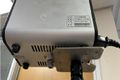
Black body bracket installation
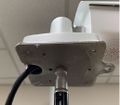
Thermal camera bracket installation


To attach the tripod:
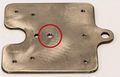
Use the center hole to screw into tripod

Tripod installed


Suggested Physical Layout

Side view diagram
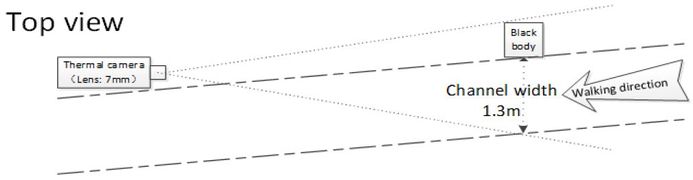
Top view diagram


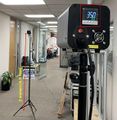
Camera height: 2m (6.56 ft)

Black body height: 1.8m (5.9 ft)
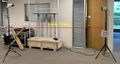
Minimum distance between both: 3m (9 ft)
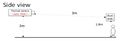
Side view diagram

Top view diagram


JQ-D70Z Black body Setup
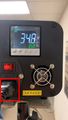
Plug in the power and turn on

Allow the device to warm up to 35.0 C


Video Instructions
Step by Step Instructions
1. Enter the IP of the device into a browser (default 192.168.1.108)
At the Web Login
Enter the Username and Password
Click Login
2. Select Setting
3. Select Smart Thermal
4. Select Smart Plan
5. Select the Temperature icon then click Save
6. Select Human Temperature
7. Select Blackbody parameter
8. Select the Draw Rule button
9. Draw a box inside the highlighted blackbody box
10. Check the box to Enable
Click Save
11. Select Human Temperature Measurement
12. Check the box to Enable
13. Click Draw Rule
Then draw the desired rule
14. Click Save
15. Select Temperature
16. Select Global Setup
17. Select Temperature Switch
Use the dropdown box to change the unit to F (Fahrenheit)
18. Click Save
Video Instructions
Step by Step Instructions
1. From Live View
Right click and select Main Menu

2. Select AI

3. Select Parameters > Face Detection

4. Use the drop down box

To select the Channel/camera

5. Toggle Enable

6. Click Apply


